Connect your LinkedIn account
Your LinkedIn connection is personal to you. Each teammate connects their own account, and each one sends from their own name. Nobody sends as anybody else.
:::info Not seeing the button? LinkedIn outreach is switched on per team. If Connect my LinkedIn looks greyed out, it isn't enabled for your team yet — contact our sales team and we'll turn it on. Everything below works the moment it is. :::
Connect
-
Click Connect my LinkedIn — you'll find it in Outreach settings, and on any contact where LinkedIn isn't set up yet.
-
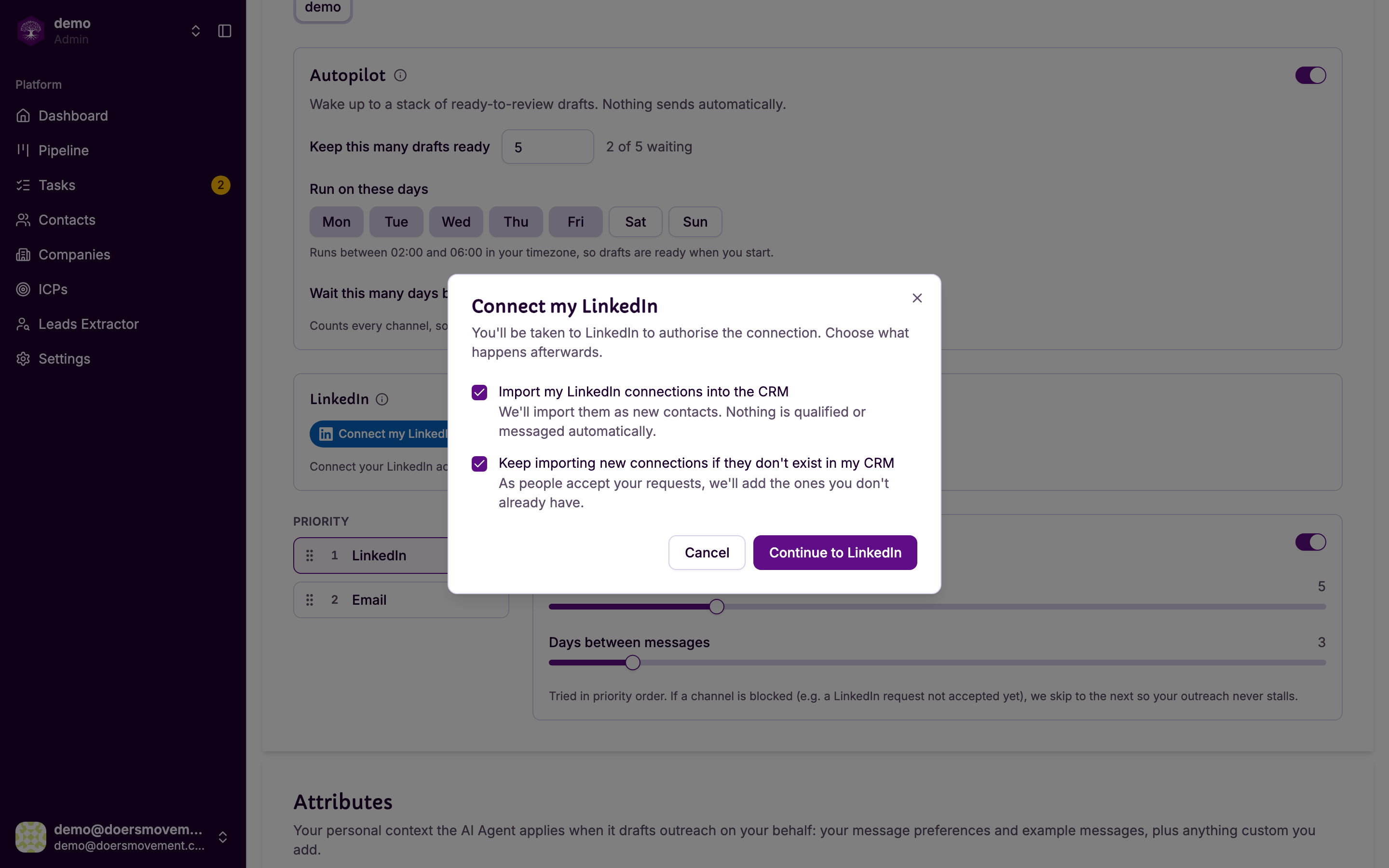
Choose what happens afterwards (both are explained below).
-
Click Continue to LinkedIn. A LinkedIn window opens where you sign in as normal.
-
Close the window when LinkedIn is done. The button turns into your connected account.
You sign in on LinkedIn's own page, not in Doers Movement. We never see or store your LinkedIn password.
The two choices
Import my LinkedIn connections into the CRM Brings the people you're already connected to in as contacts. Nobody is messaged automatically, and full qualification only starts when you ask for it. They simply arrive, and you decide what to do next. A large network takes a while to come in; it keeps going in the background.
Keep importing new connections if they don't exist in my CRM From now on, when someone new accepts or connects with you, they arrive as a contact too. Turn this off if you'd rather keep your CRM to leads you chose deliberately.
Both are on by default because they're the reason most people connect LinkedIn in the first place. If your network is mostly friends and former colleagues rather than prospects, turn the first one off.
What happens right after
- Your existing conversations start getting pulled in, so a drafted message knows you've already been talking. This runs through your inbox in the background and keeps going after the connect finishes
- Your connections start arriving as contacts, if you asked for that
- Contacts you're already connected to start showing as Connected
- Everyone who arrives from your network is yours — they land with you as the owner, so they show up under Mine, and your AI Agent can connect and message them from your account without you assigning anything first
- Someone who's already in the CRM isn't added again. People are recognized by their LinkedIn profile, then their email, so a person you and a teammate both know stays one contact: it keeps its owner, and your connection is added to it
Watching the import
A big network takes a while, and you don't have to sit and wait. When the connect finishes you'll get a Track progress link straight to it, and both imports appear on the Leads Extractor page:
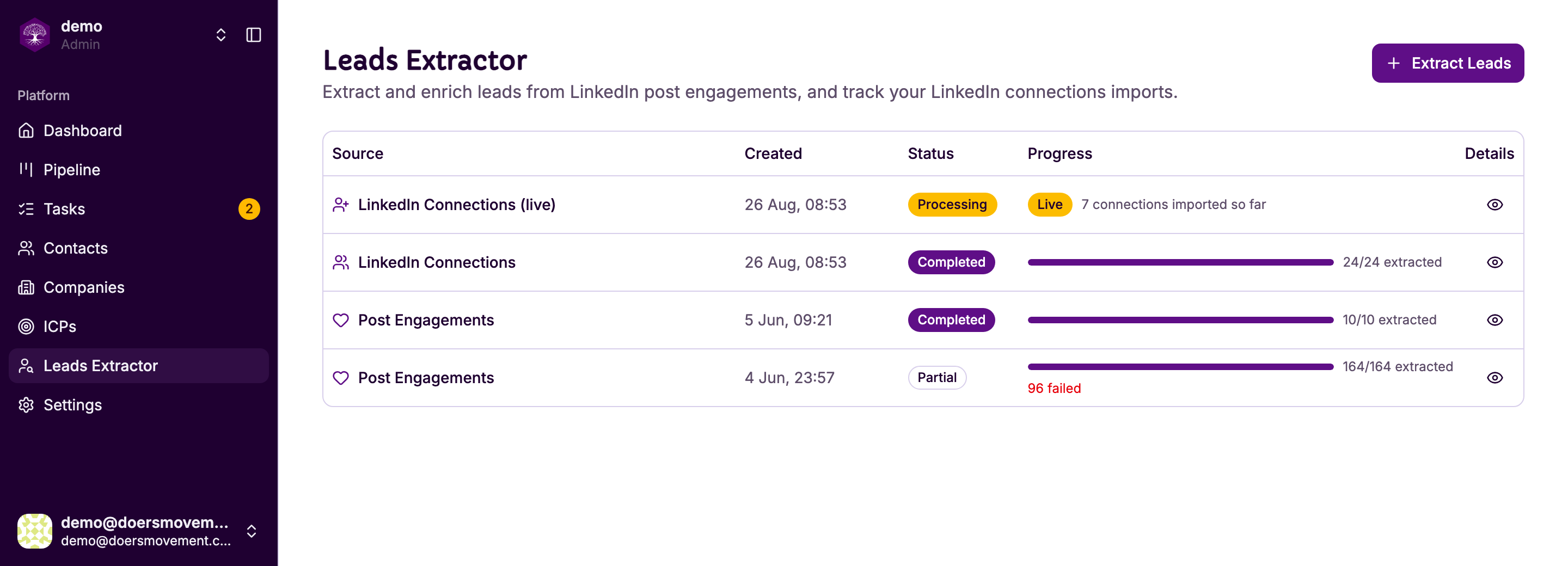
- LinkedIn Connections — the one-off import of your existing network, with a progress bar
- LinkedIn Connections (live) — the ongoing one, which stays Live and counts up as people connect with you
The live row never finishes, and shouldn't: it keeps watching for as long as the setting is on.
When LinkedIn asks you to reconnect
Occasionally LinkedIn wants you to confirm it's really you. When that happens you'll see a Reconnect my LinkedIn prompt, and sending pauses until you do it. Nothing is lost — anything queued waits and goes out once you're back.
Reconnecting never re-imports your network; it just restores the connection.
Disconnecting
Disconnect LinkedIn in Outreach settings stops all sending immediately. Your contacts, conversations and history stay exactly as they are — you're only removing Doers Movement's ability to act on LinkedIn for you.
Related
- Staying safe: the limits that protect your account
- Connection requests
- Importing data: the other ways leads arrive
- Leads Extractor: where imports are tracked