Send a connection request, then a message
What you'll get: a connection request sent from your LinkedIn account, and once it's accepted, a first message you've reviewed and approved.
This assumes your LinkedIn account is already connected. If not, start with Connect your LinkedIn account.
Steps
1. Open a qualified contact who has a LinkedIn profile on their record.
2. Set their LinkedIn status to To connect. Click the status control next to the LinkedIn icon and pick it from the list.
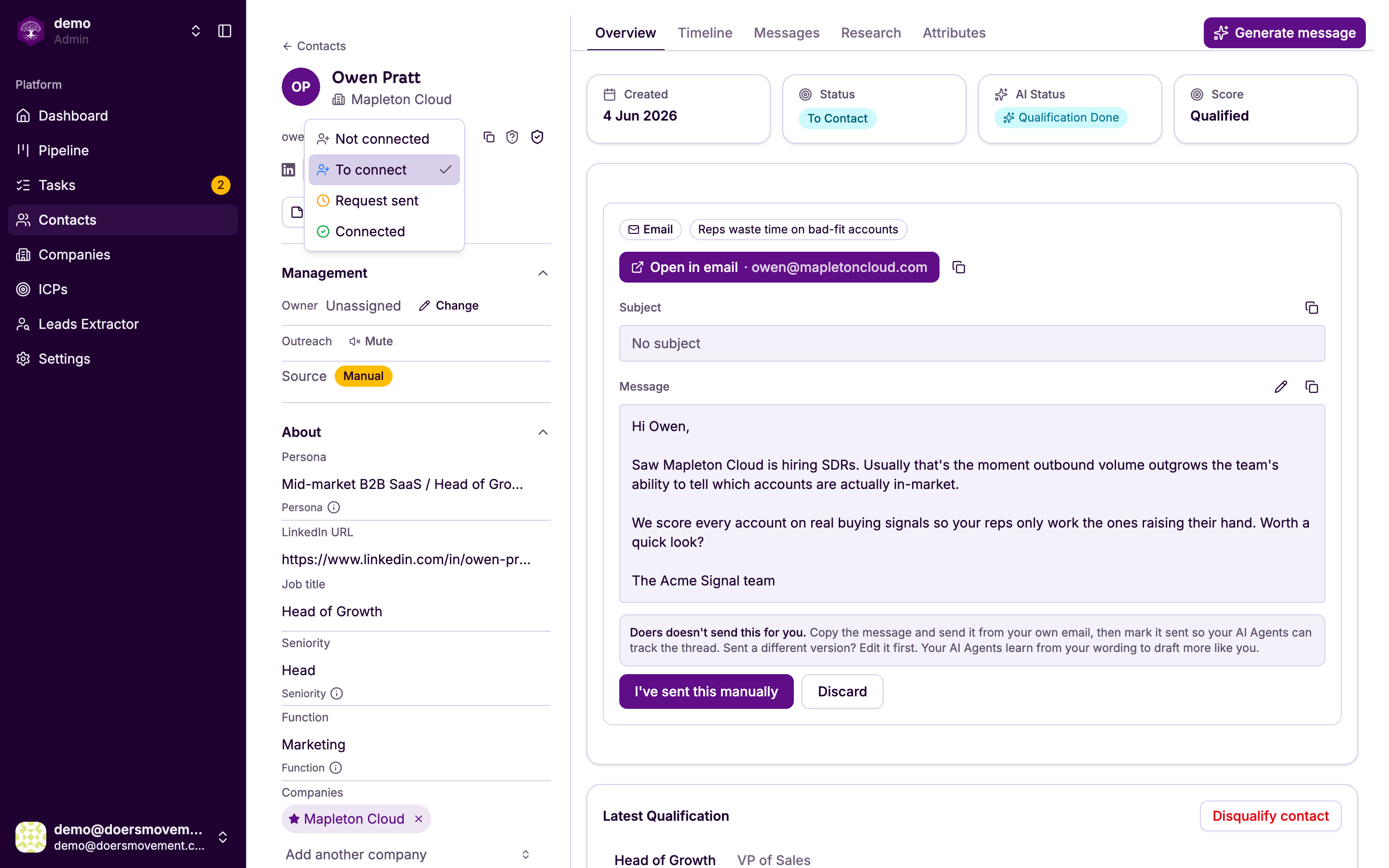
"To connect" sends a real connection request from your account. The other three statuses just describe where things stand. Only this one makes something happen.
3. Let it queue. You'll be told roughly when the request goes out — often minutes away, sometimes later in the day. That's the pacing that keeps your account safe. The status moves to Request sent on its own.
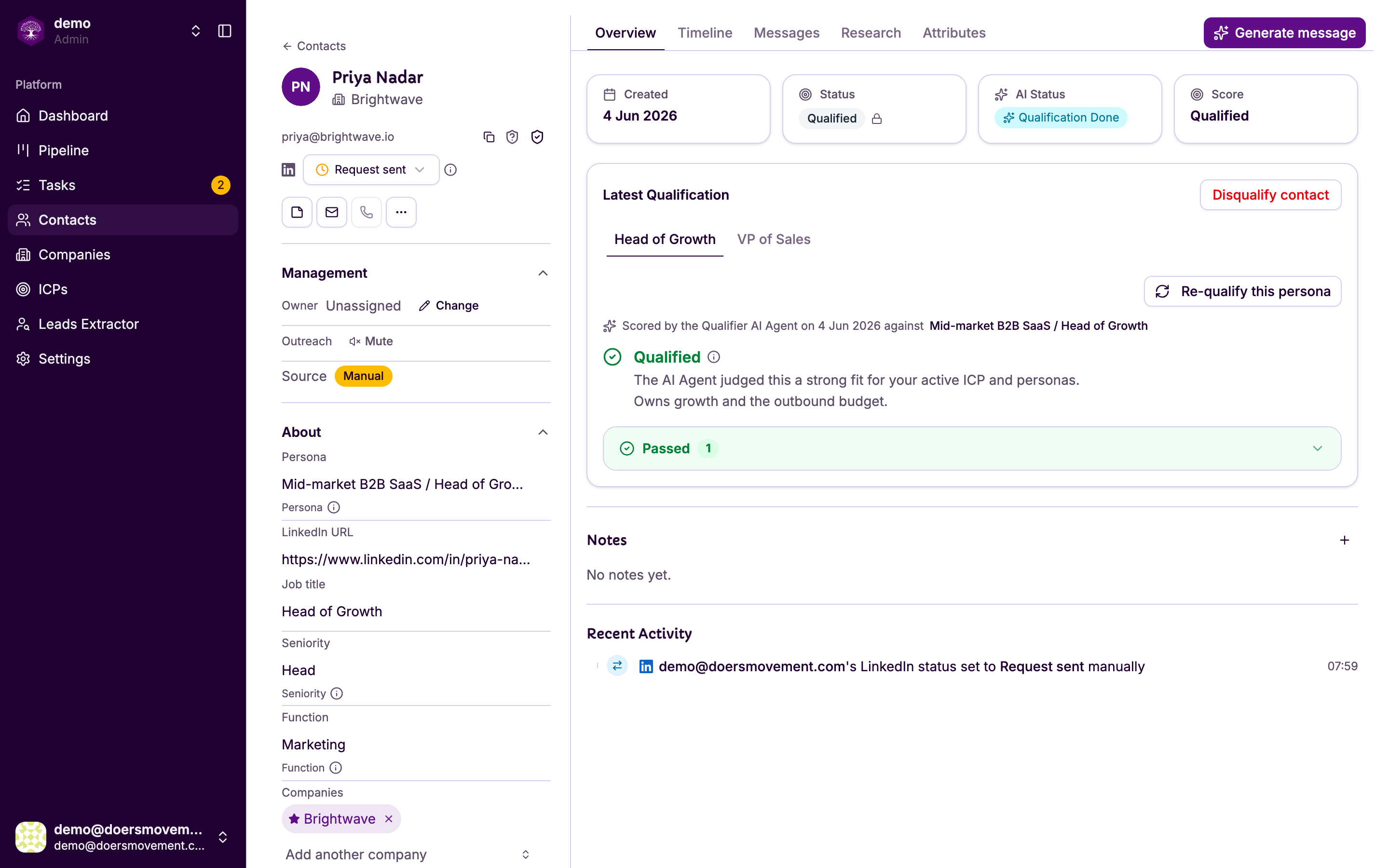
4. Wait for them to accept. When they do, the contact becomes Connected and the change is recorded on their timeline, so you can see what caused it.
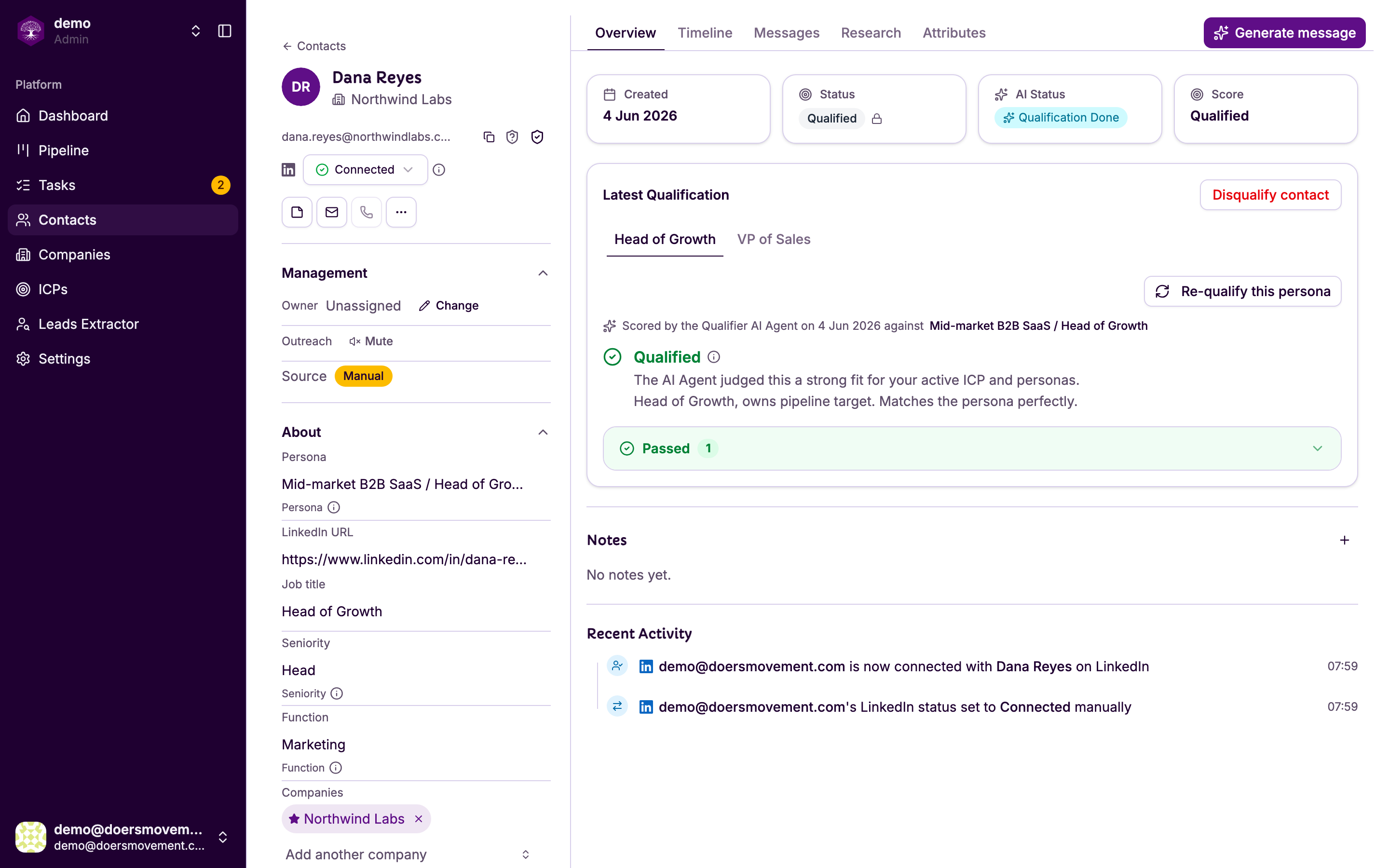
If your request carried a note, an acceptance shows up in seconds. Without one, LinkedIn only tells us in its own time — which can be a few hours. A delay here is normal, not a fault.
5. Ask for a message. With the contact Connected, LinkedIn is available as a channel. Use Generate message, or move them to To Contact, and the Message Writer drafts one.
6. Review and approve it in your Tasks area. Edit until it sounds like you, then approve. It goes out from your LinkedIn account at a safe moment — again, you'll be told roughly when.
You'll know it worked when… the message appears on the contact's Messages tab, and their reply lands there too when it comes.