Outreach
The Message Writer drafts a personalized message grounded in real research about the contact, and you review and send every one. The AI does the heavy lifting; you stay in control of every message that goes out.
Want this to run for you automatically? See Autopilot, which pre-generates a stack of review-ready drafts every night.
How a message comes together
Each outreach follows the same path, so there are no surprises:
- The system picks the channel (email or LinkedIn) and the most relevant problem to lead with for that person. You control the order it tries them in, and how often anyone hears from you — see Channels.
To message someone on LinkedIn you need to be connected with them first. If your LinkedIn account is connected, Doers Movement can request that connection for you and will know when it's accepted — see Connection requests. If it isn't, you can still record the relationship yourself on the contact.
- The Message Writer drafts it: a tailored message, ready for your eyes.
- You review and edit: tweak the wording until it sounds like you.
- You approve it. An email you send yourself and mark as sent. A LinkedIn message goes out from your connected account, paced — you'll be told roughly when. See Messages and replies.
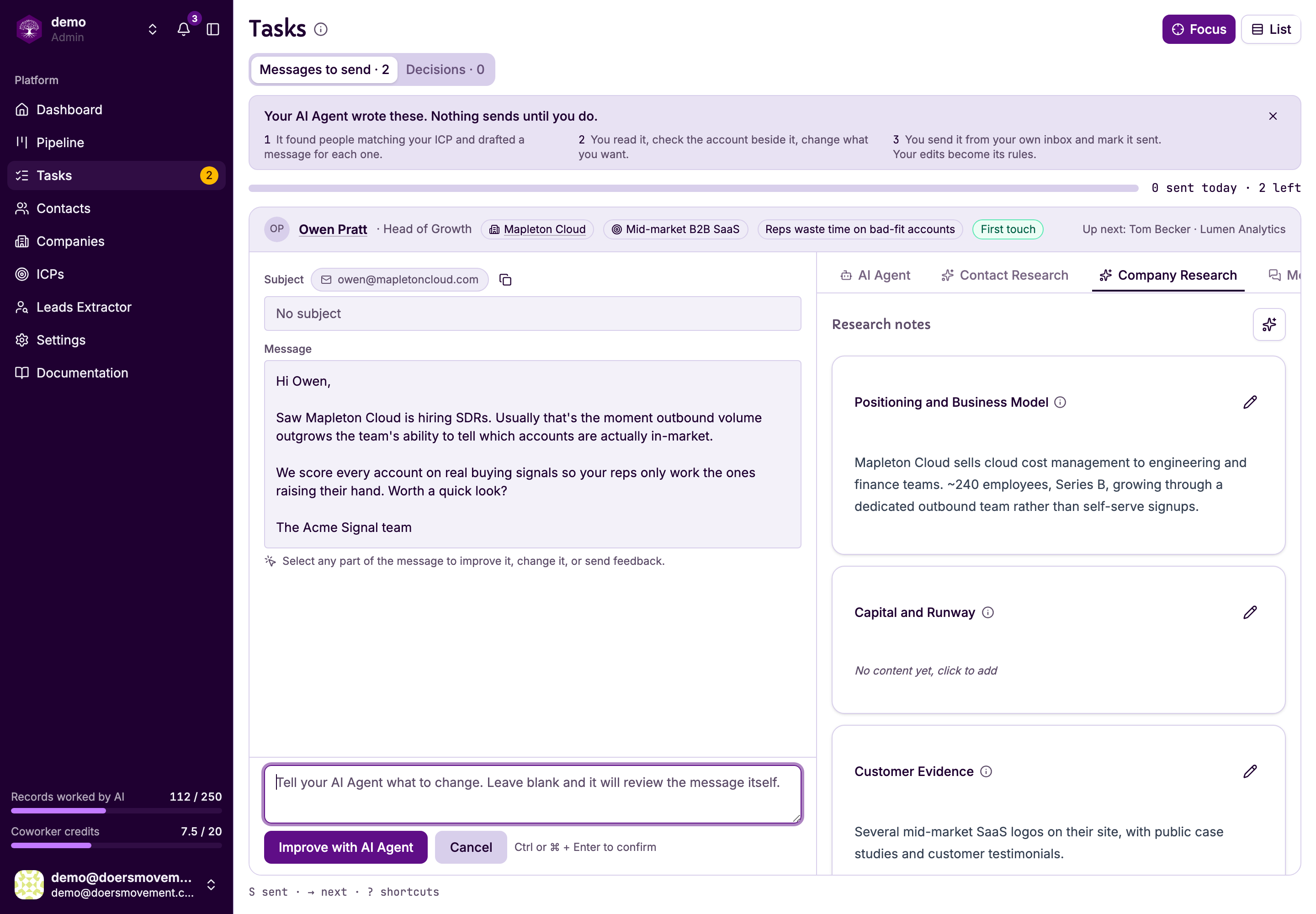
Not happy with a draft? Dismiss it with a note about what's wrong, and the AI can write you a fresh one that takes your feedback into account.
A draft is only a draft
Nothing leaves your hands automatically. A draft stays a draft until you mark it as sent. Once you do, it's saved to the contact's conversation and their timeline, so there's a clean record of what you sent and when. Every version the AI writes along the way is kept, so you never lose an earlier draft.
A safety limit protects you: if you're over your sending limits, a message won't be marked as sent. This stops you from going past your limits by accident. See Staying safe on LinkedIn.
One draft at a time
Each person has at most one draft waiting for you. If you ask for another while one is waiting, you'll be pointed to it — review it, or replace it with a fresh one. And if a message is already being written for someone (research included), a second request simply waits for that one to land.
When a message goes out — you mark a draft as sent, log a message you sent yourself, send one straight from LinkedIn, or move them to Contacted — any draft written before that message is cleared from your Tasks automatically. You'll never find yesterday's draft for someone you've already written to today. A draft written after their latest message stays put, so logging an old conversation from months ago never throws away today's draft.
Every draft on a contact's timeline says what started it (To Contact, the Generate message button, Autopilot, or your AI Agent) and who asked.
Who can send
Outreach respects ownership:
- You can draft and send for people you own, or who aren't assigned to anyone.
- Other people's contacts are off-limits, unless you're an admin.
This keeps teammates from stepping on each other's relationships.
Pausing outreach to someone (skipping)
Sometimes the person is right but the moment is wrong — they just raised, they're mid-migration, they told you to try again next quarter. Skip them instead of giving up on them.
You can skip from two places: the Skip button on the draft in your Tasks queue, or Skip for a while in the Management panel on their contact page. Either way you pick how long — a week, two weeks, a month, or a date of your own — and add a note if you want your AI Agents to learn from it.
While someone is skipped:
- Any draft waiting for them is cleared out of your queue.
- Autopilot won't write for them.
- The date they come back shows on their contact, in your contact list, and on their pipeline card.
When the date passes they rejoin the queue on their own — there's nothing to remember. Changed your mind sooner? Press Bring back now next to the date on their contact page, or generate a message for them: the skip ends as soon as the new draft is written.
For someone you should never message again, use Do not contact instead. That one is permanent: nobody on your team and none of your AI Agents can write them a message while they are marked that way, so a draft can never slip out by mistake. Generate message stays switched off on their contact page, with a note saying why. If you change your mind later, move them to another status first, then message them.
Where you review messages
You review and approve every draft in your Tasks area. Outreach reviews land there, ready for you to read, edit, mark as sent, improve, or skip.
The contact's Messages tab is a different thing: it's the read-only conversation history with that person (what's been sent and received). You don't review or send drafts from there; that always happens in Tasks.
Working through your drafts from the Tasks area keeps everything that needs your decision in one place.
Next
- Tasks and approvals: where reviews live and how approving works
- Plans and credits: what credits buy, and why writing a message is free
- Draft & send a message
- LinkedIn: connecting your account and sending there