Contacts
Your Contacts list is where every person you're selling to lives. It's built to help you find the right people fast and act on them without clicking around.
The Contacts list
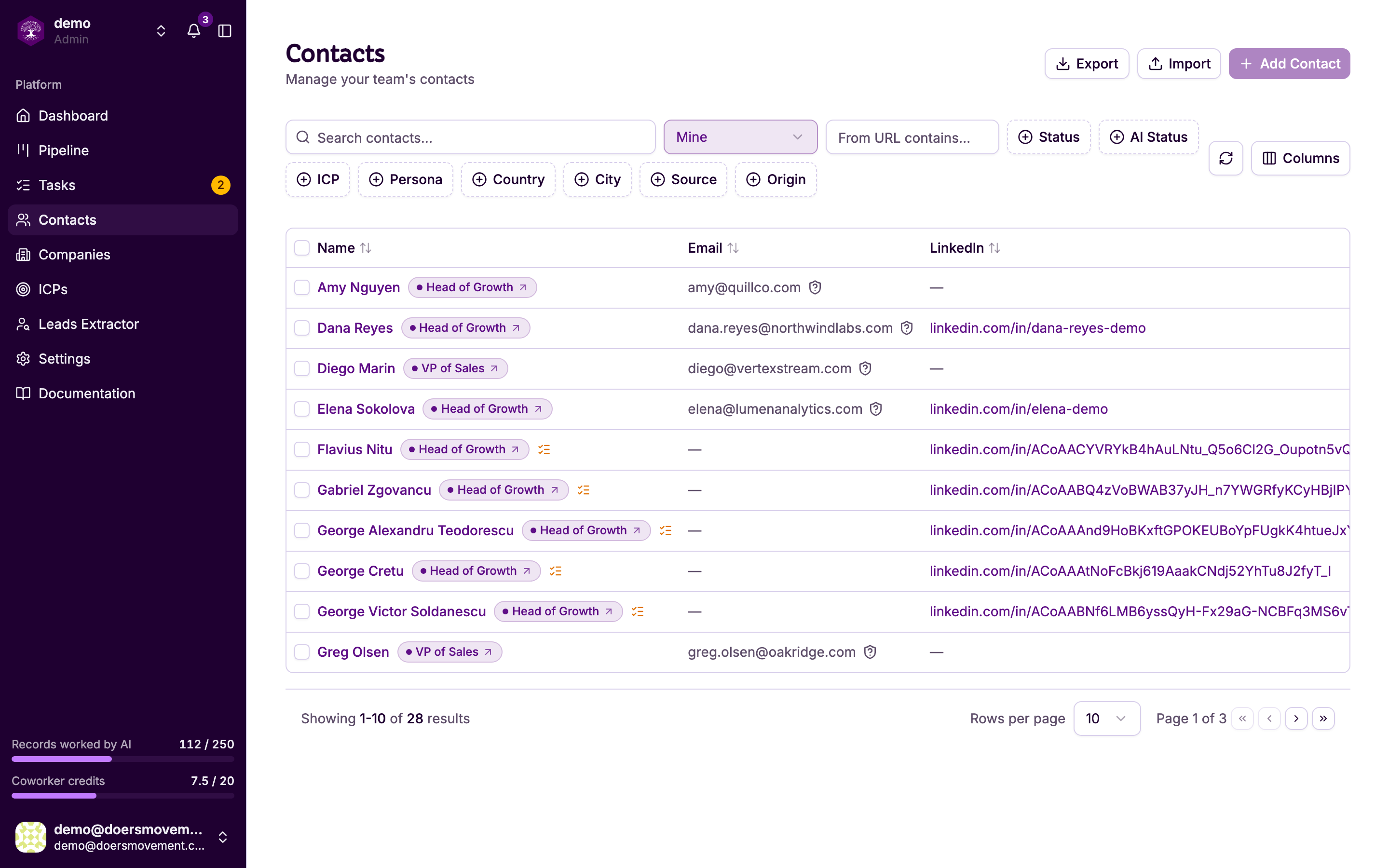
Open Contacts and you'll see all the people you're tracking, with the most useful columns up front. To find exactly who you want, you can:
- Search by name, email, company, job title, or LinkedIn headline. Typing "founder" or "Head of Sales" pulls up everyone in that role, even when you don't remember their names.
- Sort any column to bring the right people to the top.
- Filter by status, qualification, ICP, persona, company status, or owner, and combine them to slice your list however you like. ICP shows everyone qualified for one of its personas and everyone at a company that qualified for it, even people you haven't qualified yet (their ICP column stays empty until you qualify them). Add Company status (for example Qualified) and you have the people at your best-fit companies who are still waiting for a verdict, ready to qualify in one go. Your AI Agent can search the same way — "which contacts has nobody picked up?" finds the unassigned ones, the shared pool anyone on the team can work. The list opens showing everyone you can see — the whole team's contacts for admins, and your own plus the unclaimed ones for members — so nothing is hidden when you arrive. Pick Mine to focus on the contacts you're responsible for, or Unassigned to find the ones nobody has picked up yet. A filter that's shaping the list is highlighted, so you can always tell why something isn't showing. Four more filters, from your AI Agent's screening, help you decide who to look at next: Screening (possible fit, not decided yet, not a fit), Screening reason (for example Profile not read yet or Role doesn't match), and Possible ICP and Possible persona, which find the people it thinks could match a given ICP or persona before you've qualified anyone.
- Show or hide columns so you only see what matters to you.
- Page through results when your list is long.
From the top of the list you can also import a spreadsheet of contacts and run bulk actions on the rows you tick.
The contact page
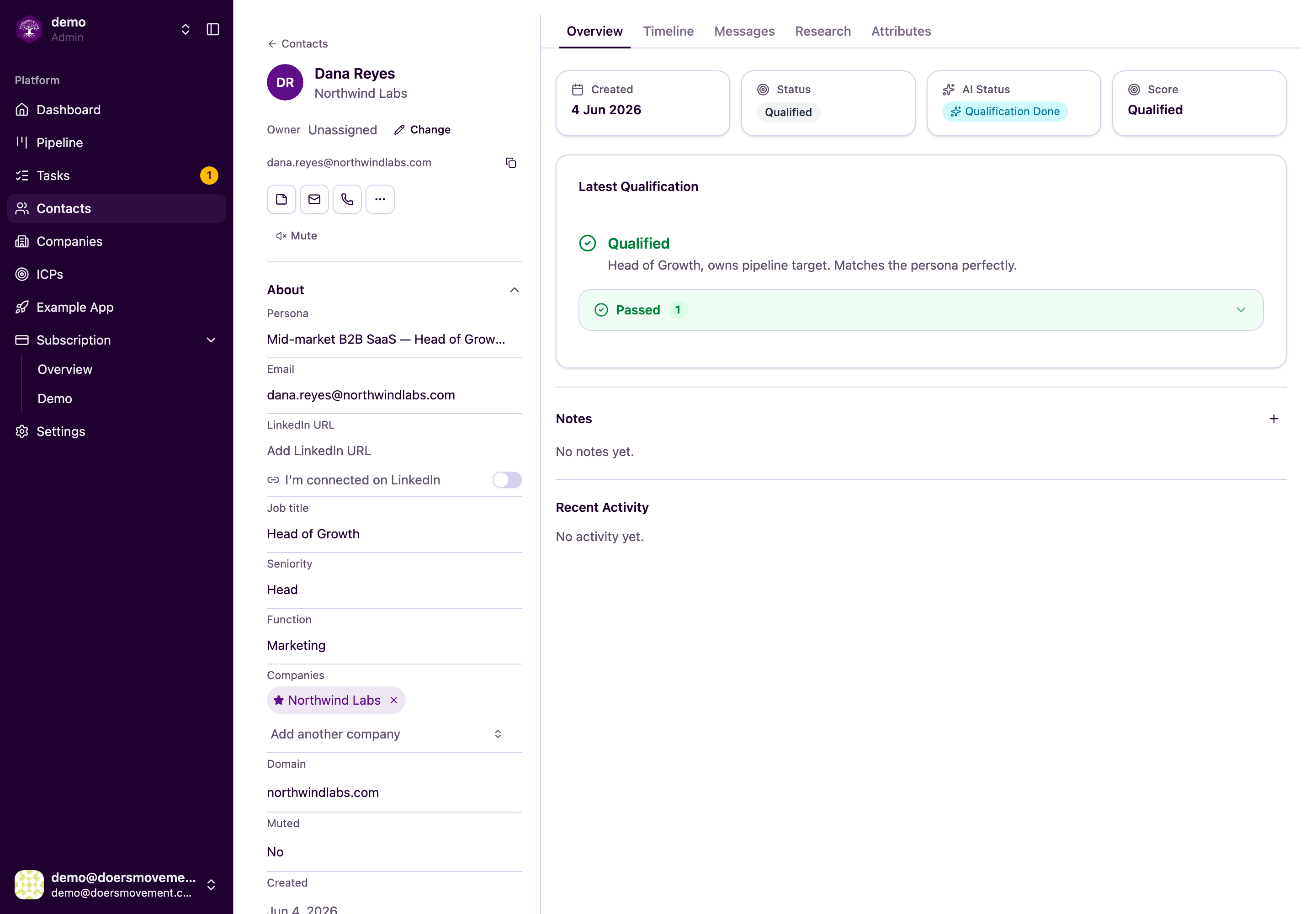
Click a contact to open their page. On the left you'll see a panel with their key details: name, title, LinkedIn headline, the companies they're linked to, their LinkedIn, and their ICP and persona. Every one of these is editable right where it sits: click, change, done.
The LinkedIn headline is how the person describes themselves on LinkedIn — "Founder @ Acme | ex-Stripe", for example. It tells you at a glance what someone does before you've confirmed their exact job title, and your AI Agent reads it too when it sizes people up and writes to them. It fills in on its own for people you bring in from LinkedIn, and it has its own column in the Contacts list.
The same panel carries the contact's LinkedIn status — Not connected, To connect, Request sent or Connected. It is yours personally: each teammate sees their own relationship with that person, and it decides whether LinkedIn is available as an outreach channel.
If your LinkedIn account is connected, choosing To connect sends a real connection request from your account, paced to keep it safe. See Connection requests.
The rest of the page is organized into tabs:
| Tab | What's there |
|---|---|
| Overview | Their status, the AI's qualification verdict and the reasoning behind it, and your notes |
| Timeline | A running history of everything that's happened with this person |
| Messages | Your conversations with them |
| Research | What the AI discovered about them |
| Details | The AI's structured knowledge about this person (see Attributes) |
Logging what happened
When you talk to someone outside the product, keep the record honest by logging it. On a contact you can log a call, email, meeting, note, SMS, or LinkedIn message. For each one you can record an outcome and set the date, including backdating it to when it actually happened. What you log shows up on the Timeline and in Messages, so the history stays complete.
These buttons record what already happened. They don't start the AI. To start AI work (research, qualify, draft a message), use the Status control or ask your AI Agent. See Starting AI work.
Notes and history
On the Overview tab you can add, edit, and delete notes, handy for jotting down what you learned on a call or what to follow up on.
The Timeline keeps an honest record for you. It logs status changes, qualification verdicts, the notes you add, and messages, so you can always see how a relationship got to where it is.
Each contact has an owner. What you can see and do with a contact depends on who owns it. See Ownership and permissions for the full picture.
Use filters and saved column layouts together. For example, filter Status to Possible Fit and show only the columns you check during qualification. It turns a long list into a focused worklist. Moving someone from Possible Fit back to New sets them aside until they really change; see Setting someone aside.
Next
- Companies: the businesses your contacts work at
- The Pipeline: move people through your sales stages
- Starting AI work: research, qualify, and draft for a contact
- Attributes: the structured knowledge behind the Details tab
- Import a lead list (CSV)