Your main AI Agent
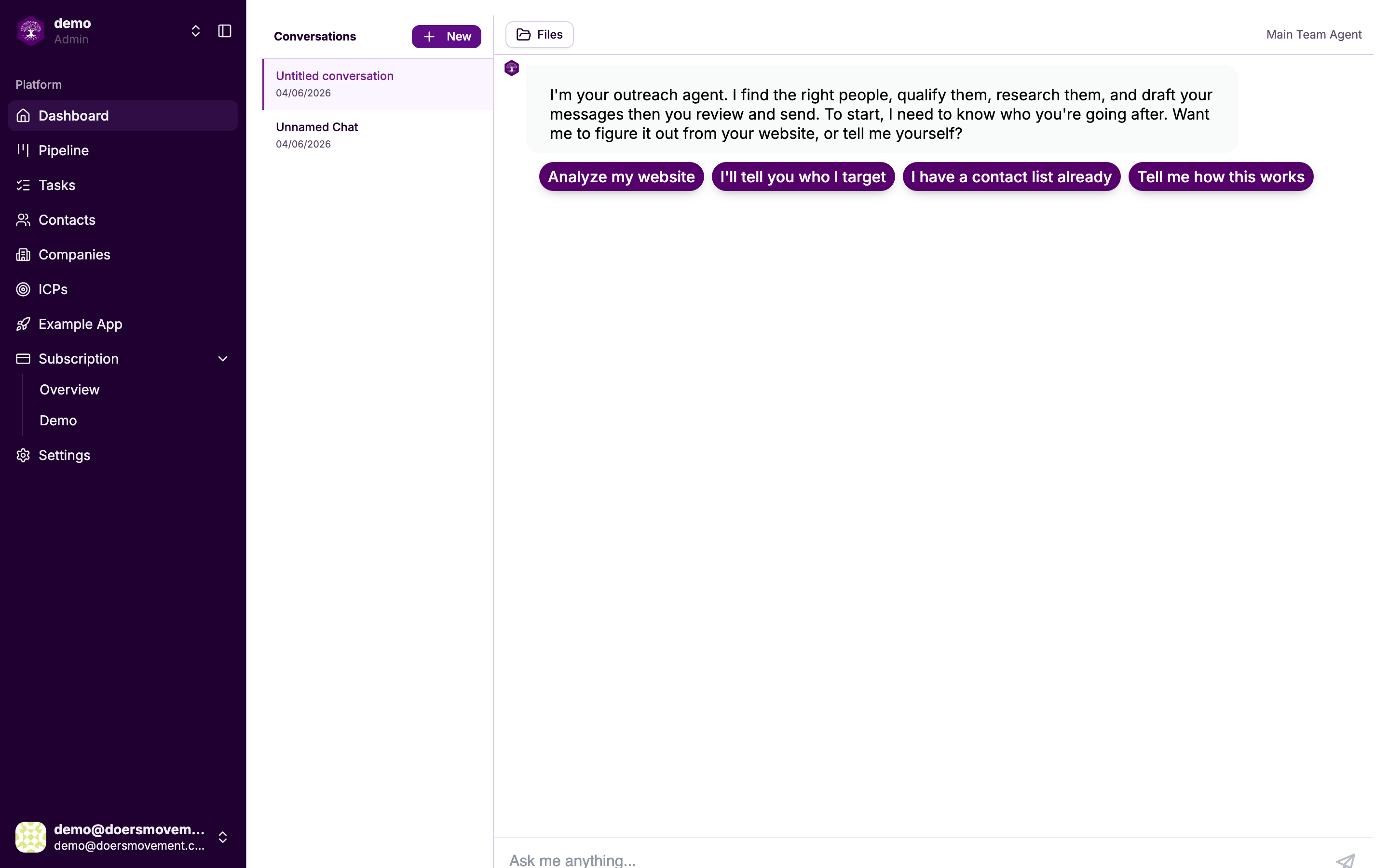
Your main AI Agent is your sales copilot, sitting right on the Dashboard. There's nothing to set up. Just chat with it like you'd message a teammate.
What you can ask
- "Add these leads."
- "Research this company."
- "Does this person qualify for us?"
- "What does my pipeline look like right now?"
- "Help me tighten my ICP."
- "Import this spreadsheet of contacts."
It already knows your setup (your target customer, your personas, your pipeline), so you never have to repeat yourself or explain the basics.
How it gets things done
When you ask for something, your main AI Agent does the work itself or quietly pulls in the right specialist. Here are a few examples:
| You ask | What happens |
|---|---|
| "Research Acme" | It sends the Researcher, then writes the findings onto the Acme company page. |
| "Does she qualify?" | It runs a qualification check and shows you the verdict, with the reasoning. |
| "Add 50 leads from this file" | It imports them for you, ready to work. |
| "Draft an intro to this contact" | It briefs the Message Writer and hands you a draft to review. |
| "Why can't I qualify this contact?" | It tells you what's in the way, such as an ICP you paused, and what would fix it. If the fix is resuming that ICP, it can do it for you once you approve. |
Researching, qualifying and drafting a message it can start directly when you ask. Ask it to research a company or a person, or to bring their research up to date, and it starts the same research as the sparkle button (Run AI research now) on the record's Research tab. It tells you whether it's new research or a refresh of earlier research and how many credits that uses, and the findings appear on the Research tab a few minutes later.
After each action, your AI Agent tells you in plain language exactly what changed: which company it updated, what verdict it reached, how many leads it added, so you're never guessing.
Watching your AI Agent work
You never have to wonder what it's doing or wait in silence. The moment you send a message, a grey line tells you what your AI Agent is doing, with a timer: Thinking…, Reasoning… or Reviewing results…, so a longer think never looks like it's stuck. Once it starts working through steps, the line shows the step it's on right now.
When it's done, that line becomes Worked for 1m 20s · 6 steps. Click it to open the full list and see every step it took. If something went wrong along the way, it says so right there, with · 1 failed. For a quick answer that needed no steps, you'll see Thought for 12s instead.
For bigger jobs, your AI Agent makes a plan, and it stays pinned just above the message box, something like Plan · 2 of 5 done, with the task it's working on right now at the top. Click it to see the whole plan. It ticks itself off as the work moves along and disappears when everything's done, so you can always see how much is left without scrolling back.
If your AI Agent has work running in the background, like qualifying a batch of leads, you'll see a single line above the message box, such as 16 running in the background. Click it to see exactly what's running, and press the ✕ next to anything you want to stop. It asks you to confirm, then stops that work and everything it started. Whatever it already finished is kept, so cancelling half-way through a batch keeps the leads it already qualified. Your AI Agent is told you stopped it, so it won't start it again on its own: it'll ask what you'd like to do next. You can also just say "stop the qualification" in the chat and it will do it for you.
Changed your mind partway through? Press stop. Anything still running is marked Stopped. Steps that already finished keep their results, and a step you stopped midway may have saved part of its work, so open the last step to see where things were left.
If your AI Agent needs a decision from you, it still asks right there in the chat, so you never have to leave the conversation to approve something.
Pick up where you left off
Your AI Agent remembers your conversations. When you come back to the Dashboard, even in a new tab, it opens the last conversation you were in, so you never lose the thread.
- Start fresh: click New at the top of your Conversations list. If an empty conversation is already waiting for you, your AI Agent reuses it instead of adding another one.
- Switch: click any conversation in the list. Each one gets a short name of its own soon after you send your first message.
- Tidy up: hover over a conversation and click the bin icon. It disappears from your list. Anything your AI Agent already did in it, like contacts it updated or tasks it created, stays done.