Your team & members
Your team is the home for everything you do in Doers Movement. All your contacts, companies, and targeting live inside it, so when you bring colleagues in, you're all working from the same place, with the same information.
Inviting people
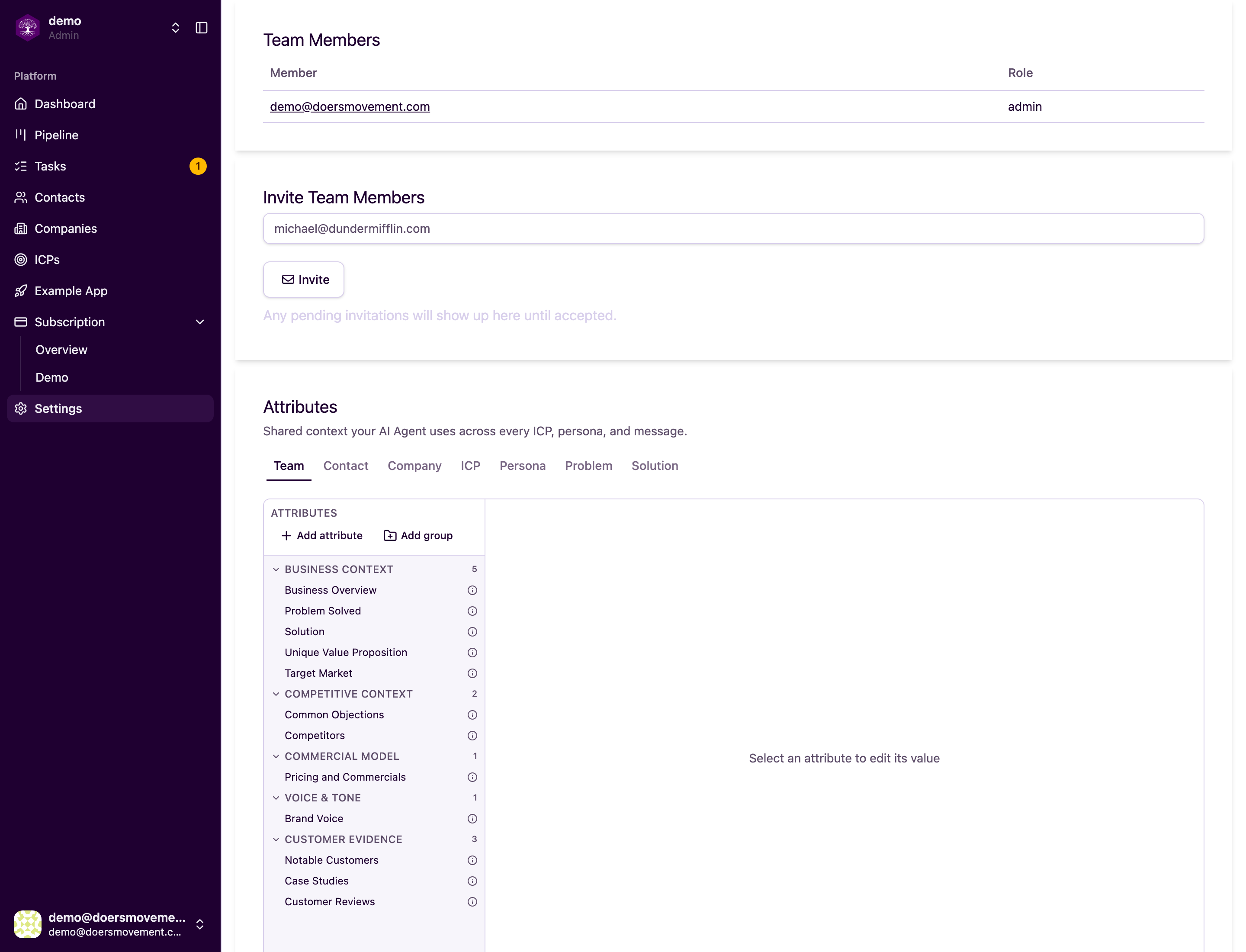
You add people to your team by email. Send an invite, and they'll get a link to join. Once they accept, they show up in your members list and can start working right away.
Your plan sets how many people can be on the team, and a pending invite holds a seat from the moment you send it. When every seat is taken, the Invite button is greyed out and tells you why — how many seats your plan includes, and what to do about it. Free one up by removing a member or cancelling an invitation you no longer need, or add a seat on the Billing page. See Plans & credits.
Each person you invite gets one of two roles:
- Admin: full control. Admins manage settings, members, and billing. They can edit your shared targeting and decide who owns which contacts and companies.
- Member: does the day-to-day selling. Members work the contacts and companies assigned to them and log what happens, but they can't change your shared targeting or manage the team.
Make a couple of trusted people Admins so the team keeps running smoothly when you're heads-down. Everyone else can start as a Member.
Managing invites and roles
People don't always accept right away, and that's fine. While an invite is still pending, you can:
- Resend it, in case the first email got buried.
- Cancel it, if you invited the wrong address or changed your mind.
You can also change someone's role at any time: promote a Member to Admin, or move an Admin back to Member as your team grows and responsibilities shift.
Where to manage all this
Everything above lives in your Team settings: the member list, pending invites, role changes, and invitations. It's your one place to see who's on the team and what they can do.
Removing or changing someone doesn't touch the work itself. Your contacts, companies, and targeting stay exactly where they are. Roles only decide who can see and change what.
Related
- Who can see and do what: the simple rules behind Admin and Member access.
- Invite a teammate & assign leads: a step-by-step recipe.